

Before performing any operations with your miniSMU MS01, you need to establish a connection between the device and the software interface. This section guides you through the connection process for both USB and WiFi connectivity options.
Software Connection Overview
The miniSMU software provides a unified interface for connecting to your device regardless of the physical connection method (USB or WiFi).
Connection Prerequisites
Before attempting to connect:
Ensure proper setup
- Verify that you've completed the Power Supply Setup
- Confirm you've established either a USB or WiFi connection
- Make sure the miniSMU MS01 is powered on (power switch in ON position)
Software installation
- Confirm the miniSMU software is properly installed on your computer
- Verify you have the latest version for optimal compatibility
System requirements
- Ensure your computer meets the minimum requirements
- Check that no other software is actively using the COM port or network connection
Connecting via the Software Interface
Launch the miniSMU Software
- Locate the miniSMU application icon in your Start menu, desktop, or applications folder
- Double-click to launch the application
- Wait for the application to initialise completely
Access the Connection Menu
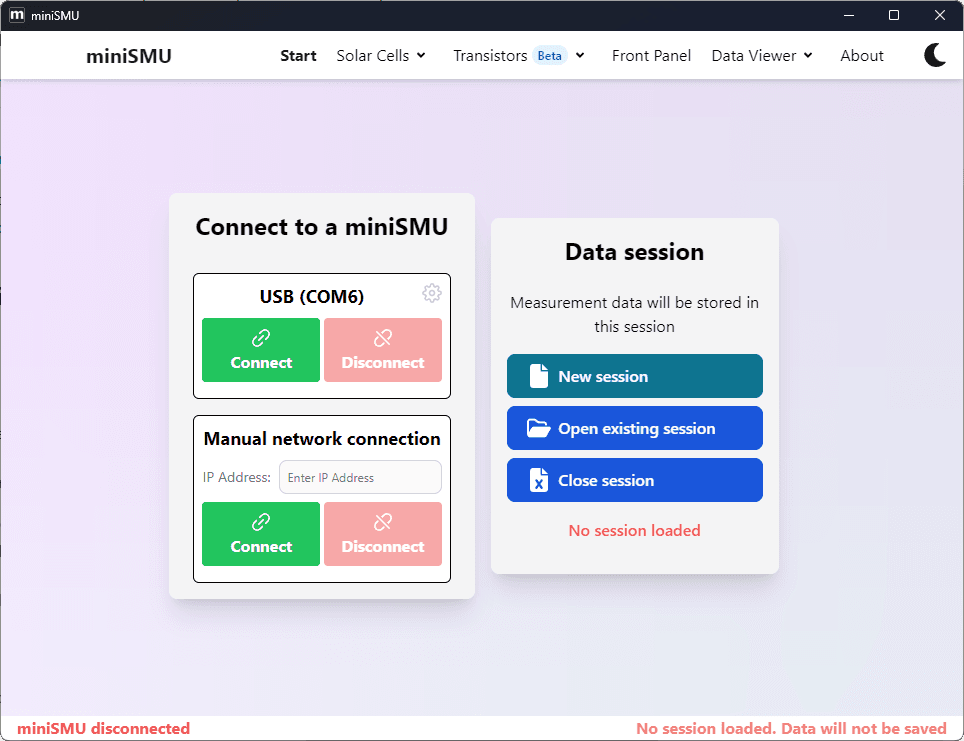
- In the main "Start" tab, locate the "Connect" button for the desired miniSMU
- Click on this button to connect to the miniSMU
Verify Successful Connection
- The status bar at the bottom of the window will update to show the connected device information
USB-Specific Connection Notes
When connecting via USB:
- The device typically appears as a Virtual COM Port in the system
- The USB connection is usually the most reliable and recommended for initial setup
- The miniSMU Application will only show COM ports belonging to miniSMU devices
WiFi-Specific Connection Notes
When connecting via WiFi:
- Ensure you've previously configured the WiFi settings as described in the Connectivity Setup section
- The software uses mDNS (Bonjour) to discover devices on the local network
- If the device doesn't appear in the discovery list:
- Check that your computer is on the same network as the miniSMU
- Verify that no firewall is blocking the discovery (UDP port 5353) or communication (TCP port 3333)
- Try the "Manual Connection" option and enter the IP address if you know it
Managing Multiple Devices
If you have multiple miniSMU devices:
- All available devices will appear in the connection dialog
- You can identify each device by connecting to it, clicking the Gear icon, and clicking "Blink miniSMU lights"
- For multi-device operation, launch multiple instances of the miniSMU Application and connect to the desired devics
Troubleshooting Connection Issues
If you encounter connection problems:
USB Connection Issues
- Verify the USB cable is securely connected at both ends
- Try a different USB port on your computer
- Check Device Manager (Windows) to see if the device appears
- Try a different USB cable
- Restart both the computer and the miniSMU device
WiFi Connection Issues
- Verify the WiFi antenna is properly attached
- Check that your computer is connected to the same network
- Try reconnecting the device to the WiFi network using the USB connection first
- Restart your WiFi router if necessary
- Check for firewall or security software blocking the connection
General Connection Issues
- Ensure the device is properly powered (status LED illuminated)
- Try restarting both the software and the device
- Consult the detailed troubleshooting section in the user manual
After successfully connecting to your miniSMU MS01, you'll be ready to proceed with configuring the device and performing measurements. The next section covers the Basic Command Structure for controlling your device.